Support PIN For WHMCS
Contents |
About Support PIN For WHMCS
| Support PIN For WHMCS closes a simple but common support gap: confirming that a client contacting support is really the account owner. The module gives every client a short, one-time-visible PIN they can read aloud, and gives staff a matching set of tools to check it, or to identify a client from the PIN alone, without ever seeing the PIN in reverse. PINs are stored as a one-way digest and are never recoverable, even from the database. |
- Addon Module Features:
| ✔ Generate A Short-Lived Support PIN From The Client Area |
| ✔ Verify A Support PIN To Identify The Calling Client: |
| ✔ From The Module's Own Dashboard |
| ✔ From A Widget On The WHMCS Admin Home Dashboard |
| ✔ From A Panel Embedded Directly On The Client Summary Page |
| ✔ View Dashboard With PIN Status Counters: |
| ✔ Active / Used / Expired / Revoked, Each Filterable With One Click |
| ✔ Manage All Issued PINs In A Single Table: |
| ✔ Revoke A Single PIN |
| ✔ Revoke Multiple PINs With A Mass Action |
| ✔ Configure PIN Policy: |
| ✔ Set PIN Length |
| ✔ Set PIN Expiration Time, In Hours |
| ✔ Restrict PINs To Single Use |
| ✔ Allow Or Block Multiple Active PINs Per Client |
| ✔ Expire A PIN Automatically Once Staff Have Used It |
| ✔ Control Staff Access: |
| ✔ Require PIN Verification Before Staff Can Open Client Data |
| ✔ Deny Admin Access Again Once The Verified PIN Expires |
| ✔ Hide The Full PIN Value In The Admin UI |
| ✔ Control Client Area Behavior: |
| ✔ Enable Or Disable The Generate PIN Button |
| ✔ Choose Where The Current PIN Is Shown To The Client |
| ✔ Hide Support PIN From The Client Area Navbar |
| ✔ Live Countdown To Expiry Shown In The Client Area Sidebar |
| ✔ One-Time PIN Reveal With A Copy-To-Clipboard Button |
| ✔ Confirmation Step Before Generating A New PIN |
| ✔ View And Manage Module Logs |
- General Info:
| ✔ PINs Are Stored As A One-Way Digest And Are Never Recoverable, Even From The Database |
| ✔ Multi-Language Support With Custom Translations Tool |
| ✔ Requires PHP 8.1 Or Later |
Installation
| This tutorial will show you how to successfully install and configure Support PIN For WHMCS. We will guide you step by step through the whole installation and configuration process. |
| 1. Extract the package and upload its content into the main WHMCS directory, then log in to your WHMCS admin area. Go to 'System Settings' → 'Addon Modules'. Find 'Support PIN' in the list and press the 'Activate' button. |

|
| 2. In the next step, you need to permit access to this module. To do so, click on the 'Configure' button, tick 'Full Administrator' and press 'Save Changes'. |

|
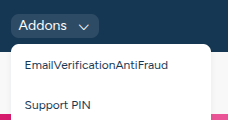
| 3. You have just successfully installed Support PIN! You can access your module under 'Addons' → 'Support PIN'. |
|
Management
| Support PIN For WHMCS lets clients generate a short-lived verification PIN, and gives your staff several places to check it against a client's claim. In this guide, we will walk you through every section and option of the module in detail. |
Dashboard
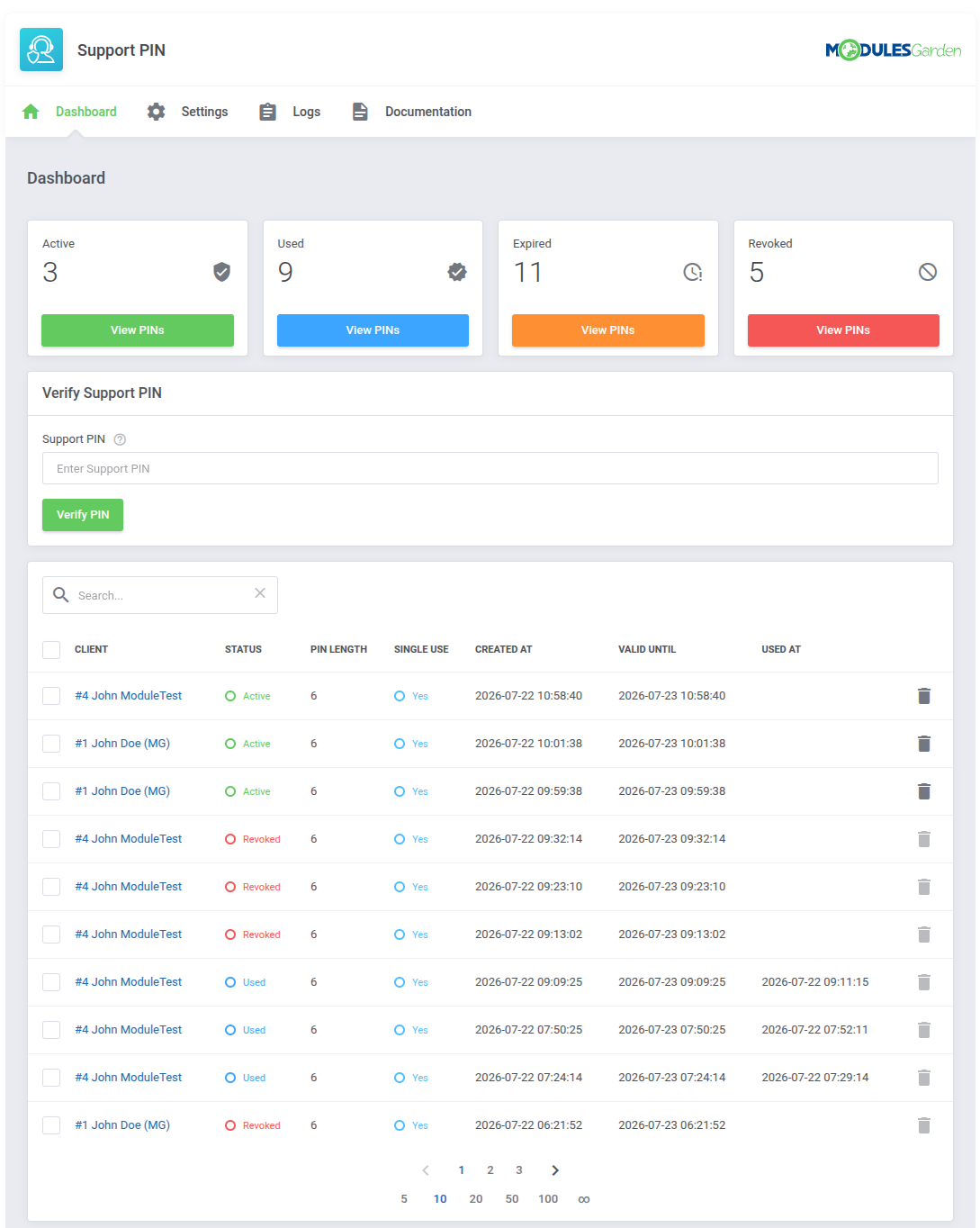
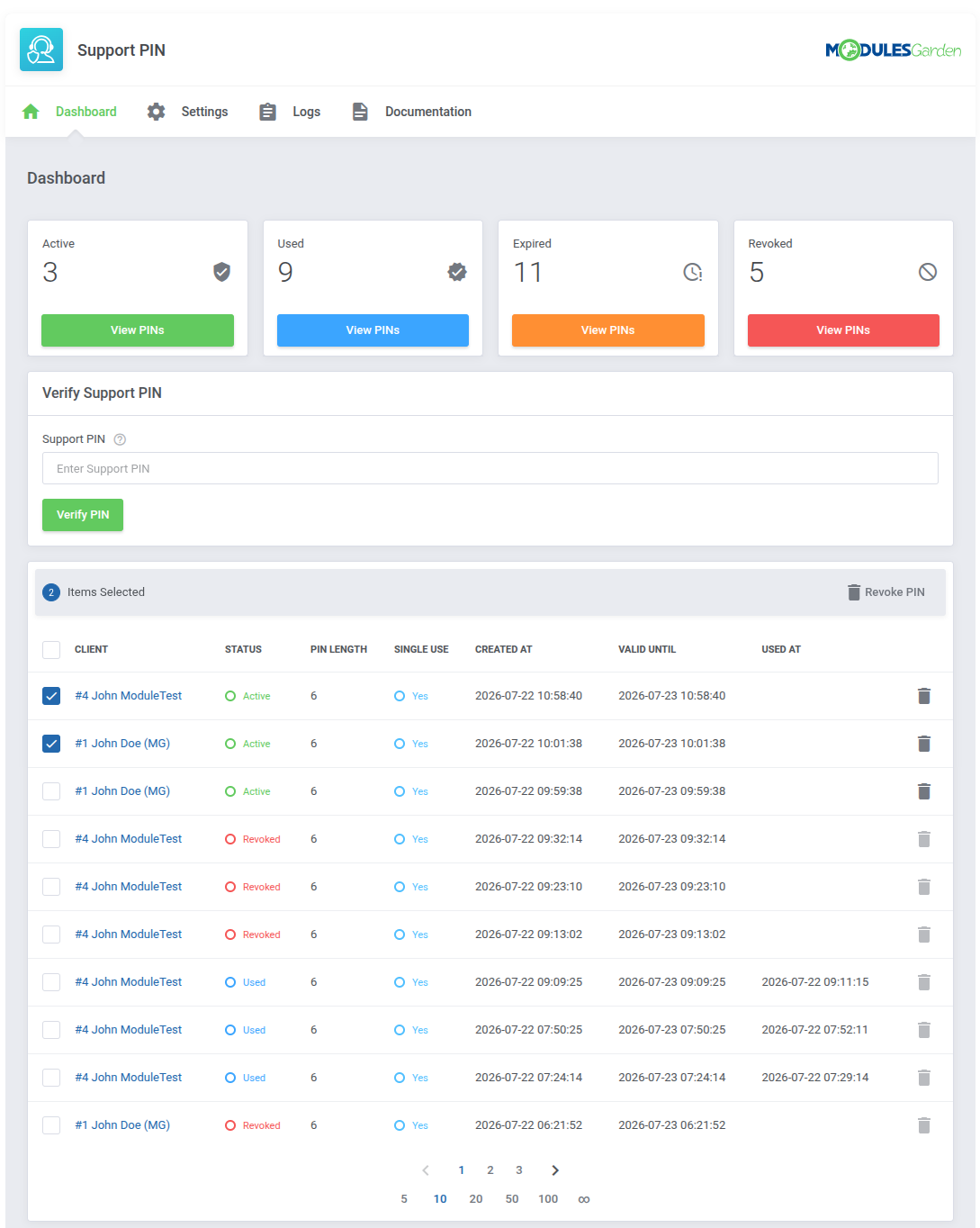
The dashboard gives an at-a-glance read on PIN volume through four counters:
Each counter has its own 'Show' button, which filters the table below to just that status. |
|
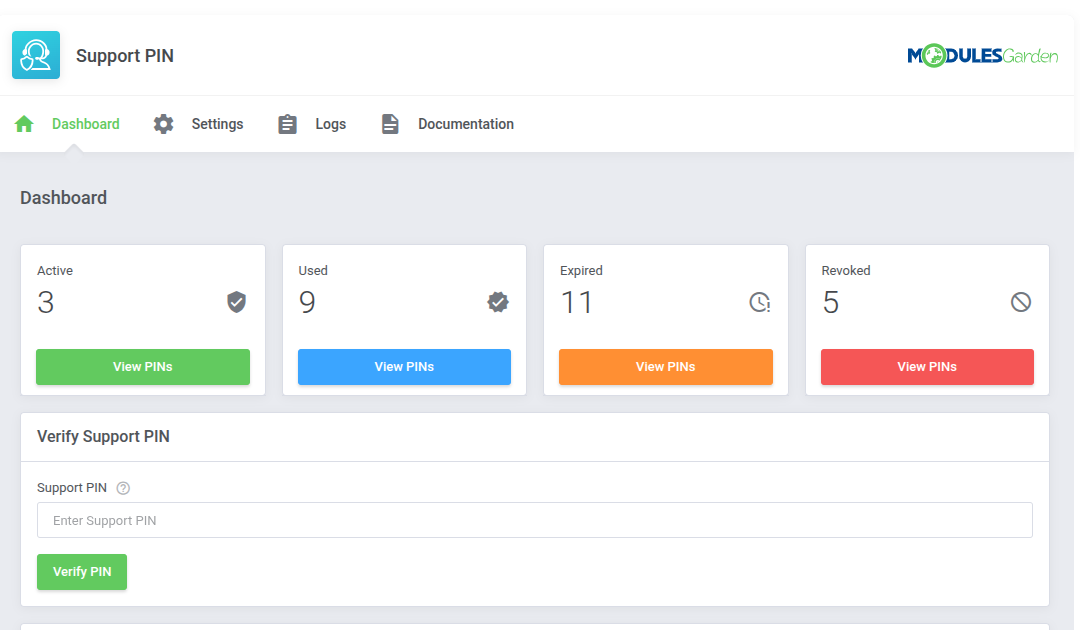
| Below the counters sits a standalone 'Verify Support PIN' field. Enter a PIN a client has given you and press 'Verify PIN' to confirm it and access the associated client account, without opening a client record first. |
|
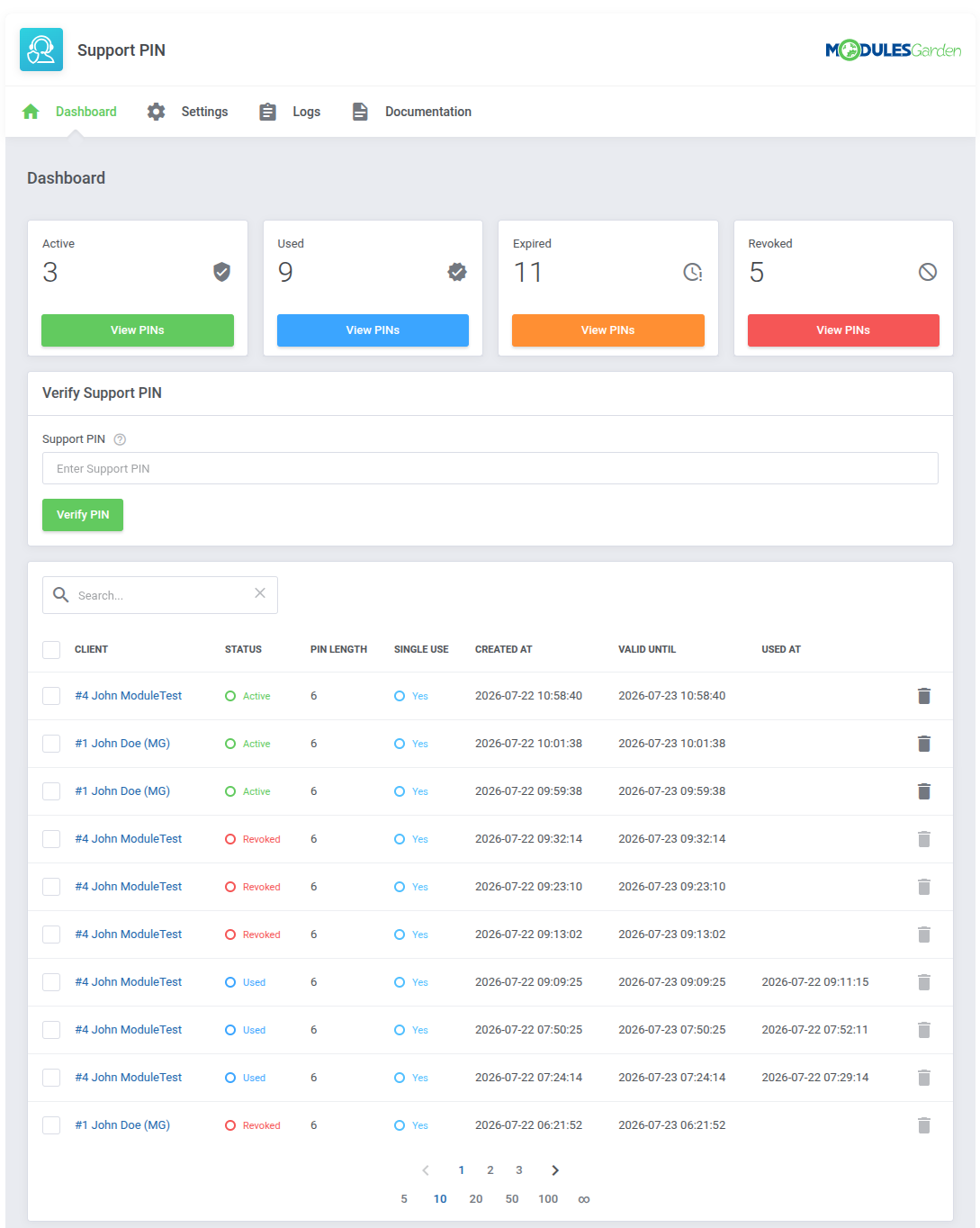
Underneath, the full table of issued PINs lists, per PIN:
Use the trash icon on a row to 'Revoke PIN' on that single entry. |
|
| To revoke several PINs at once, tick the checkboxes of the rows you want to remove, open the mass action menu above the table, and choose 'Revoke PIN'. |
|
Settings
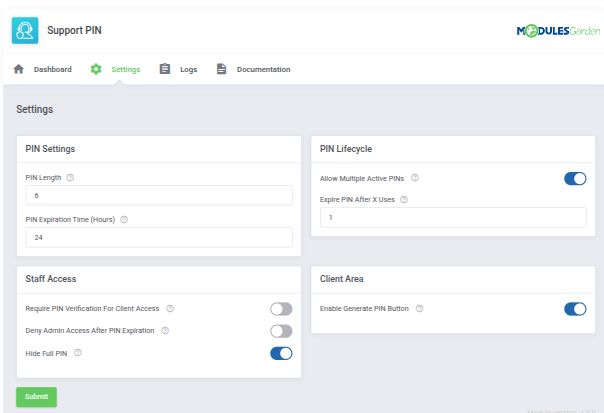
| The 'Settings' tab groups every PIN policy option into four panels. |
PIN Settings
*PIN Length - the number of digits generated for each new PIN.
|
|
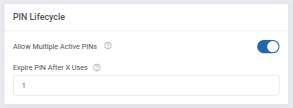
PIN Lifecycle
*Single-Use PINs - if enabled, a PIN is invalidated the first time it is successfully verified.
|
|
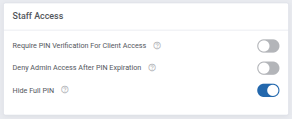
Staff Access
*Require PIN Verification For Client Access - if enabled, staff must verify a client's Support PIN before that client's data can be opened at all.
|
|
Client Area
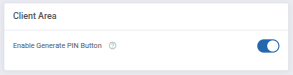
*Enable Generate PIN Button - shows or hides the 'Generate Support PIN' button in the client area.
|
|
Home Widget
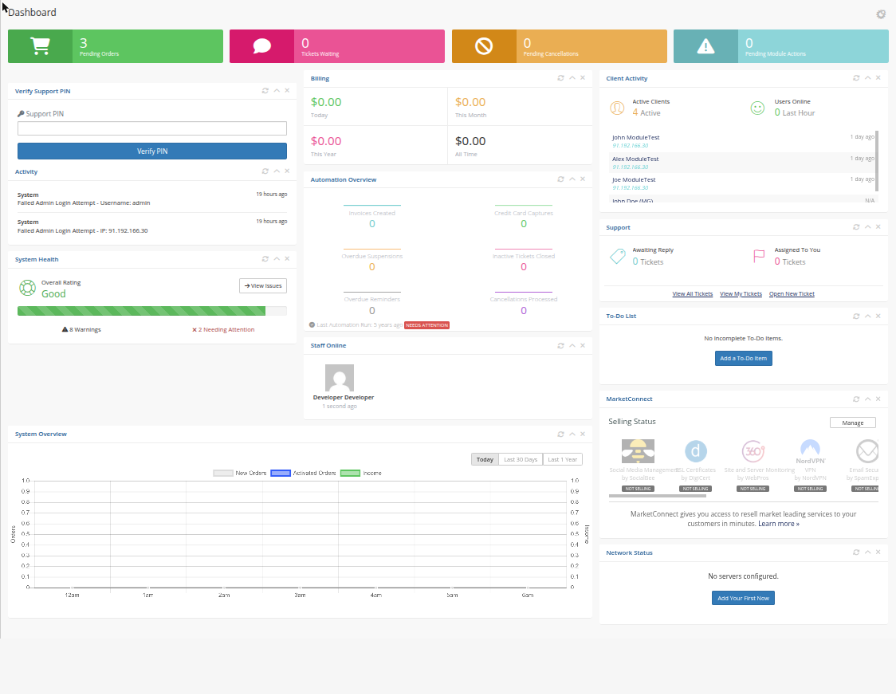
| A compact 'Verify Support PIN' panel is added to the standard WHMCS admin home dashboard, next to the built-in widgets staff already check every day, so a PIN can be checked the moment a call comes in without opening the module at all. |
|
Client Summary Integration
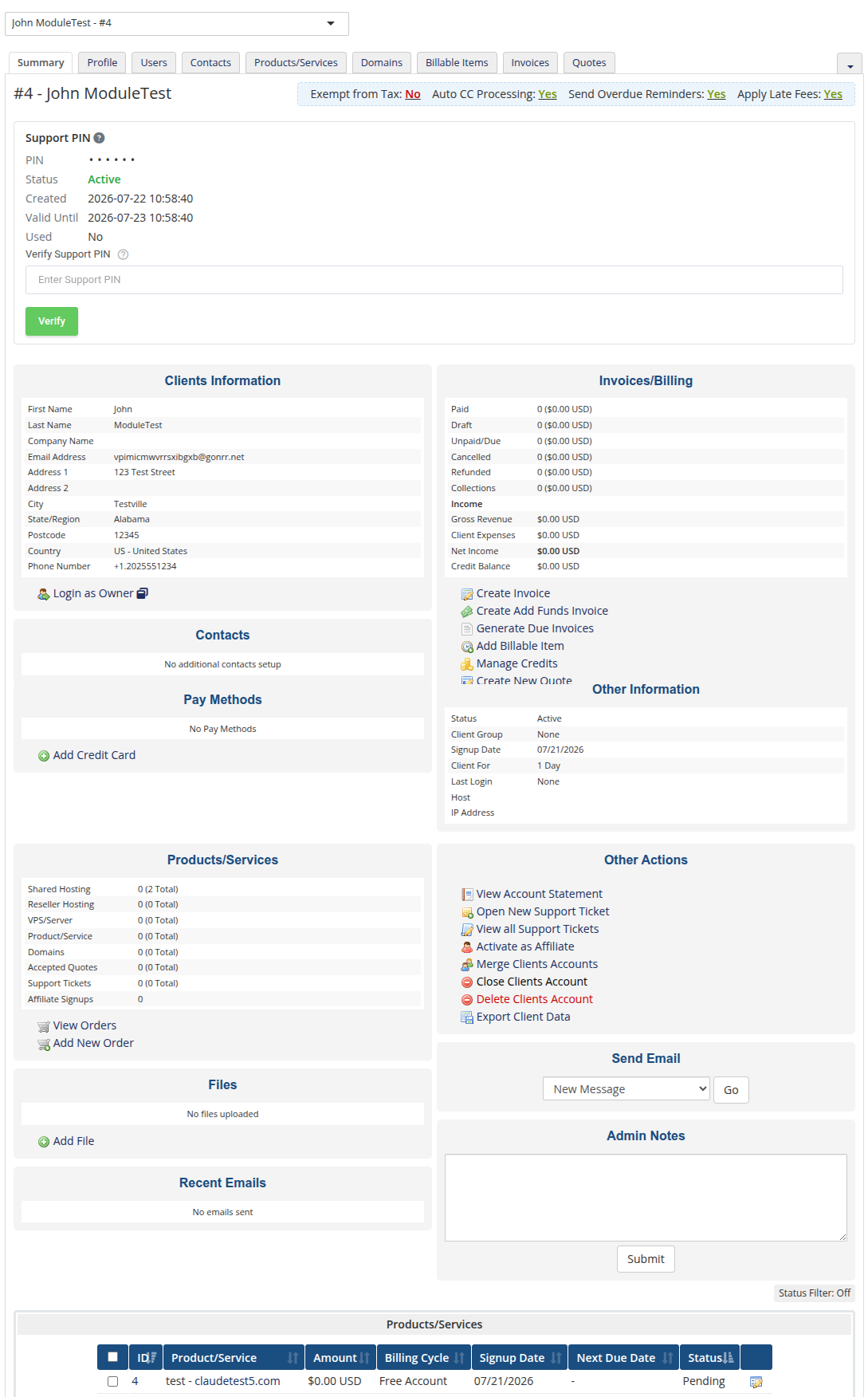
| On a client's own 'Summary' tab, a 'Support PIN' panel shows that client's current PIN status, when it was created, and when it expires. |
|
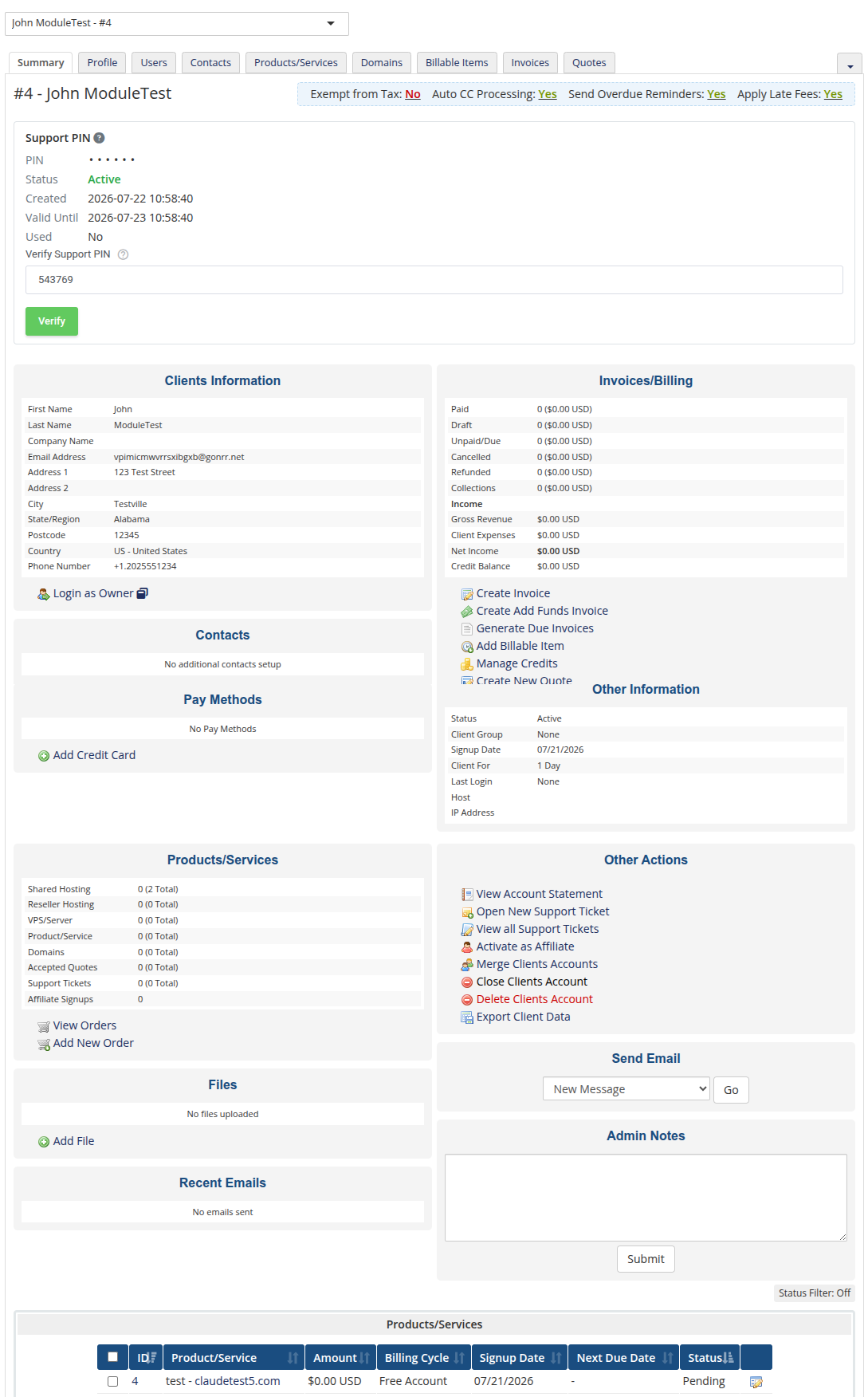
| The same panel includes a 'Verify PIN' field, so the code the client just gave can be checked right there, without leaving the client's profile. |
|
Client Area
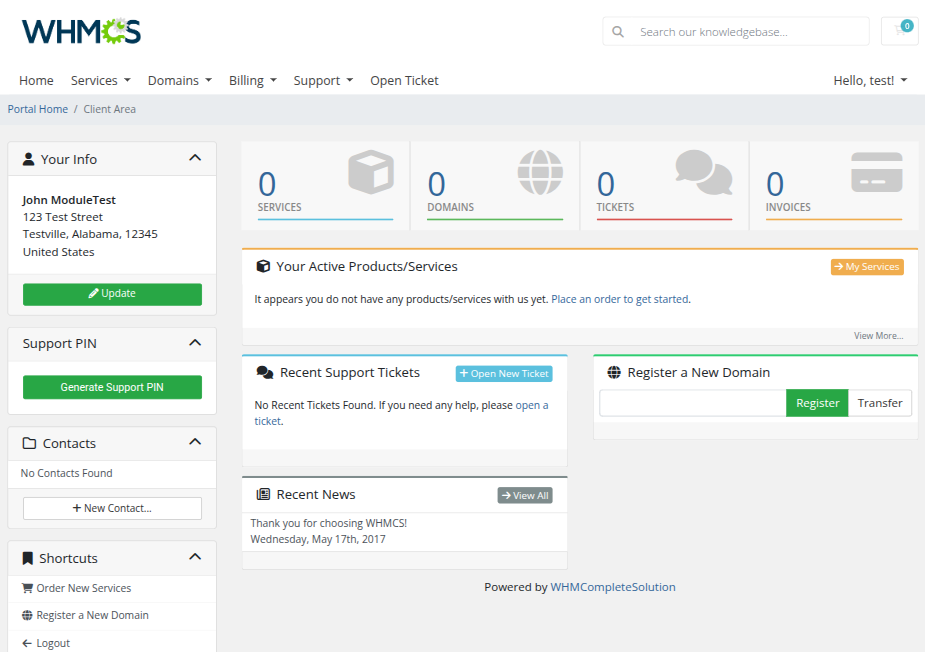
| A 'Support PIN' panel is added to the client area sidebar on every page. With no PIN active, it shows a single 'Generate Support PIN' button. |
|
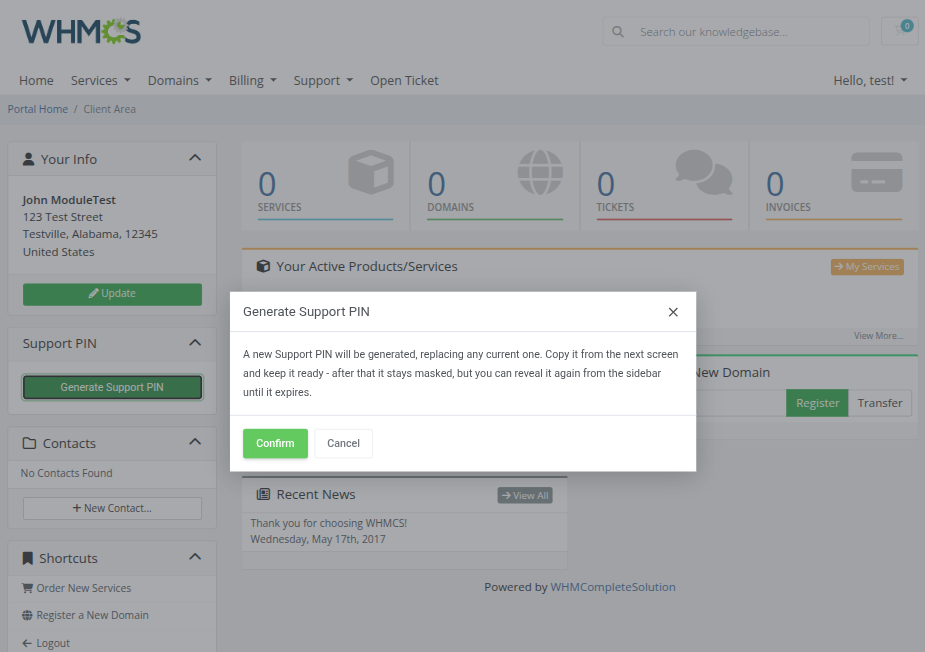
| Generating a PIN replaces any PIN already in use, so the client is asked to confirm first. The dialog states plainly that the code is shown only once and should be kept ready before contacting support. |
|
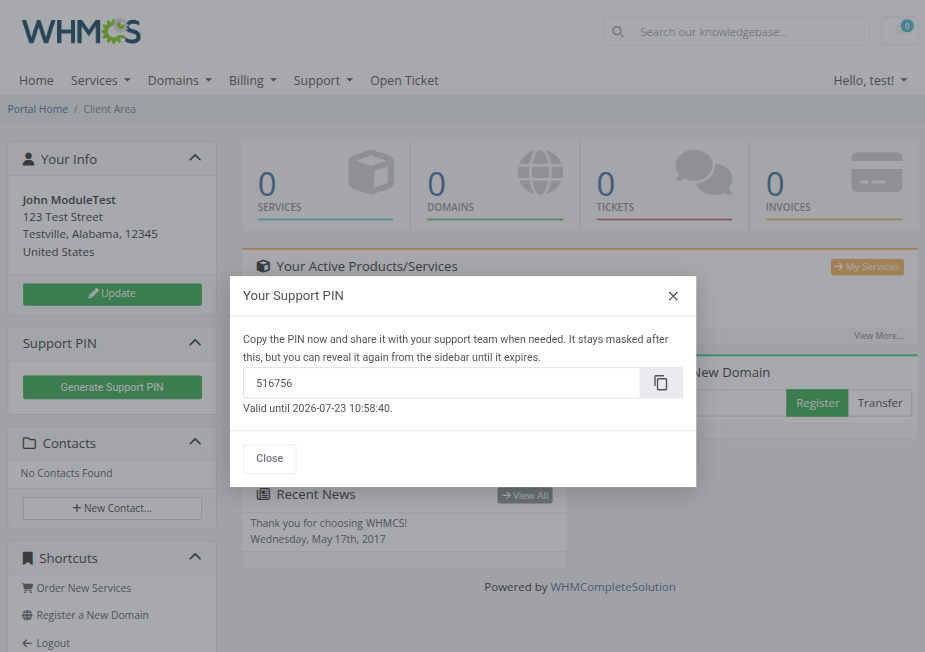
| Once confirmed, the client sees the new PIN, its expiry timestamp, and a copy-to-clipboard button, with a reminder to copy it now while it's readable. |
|
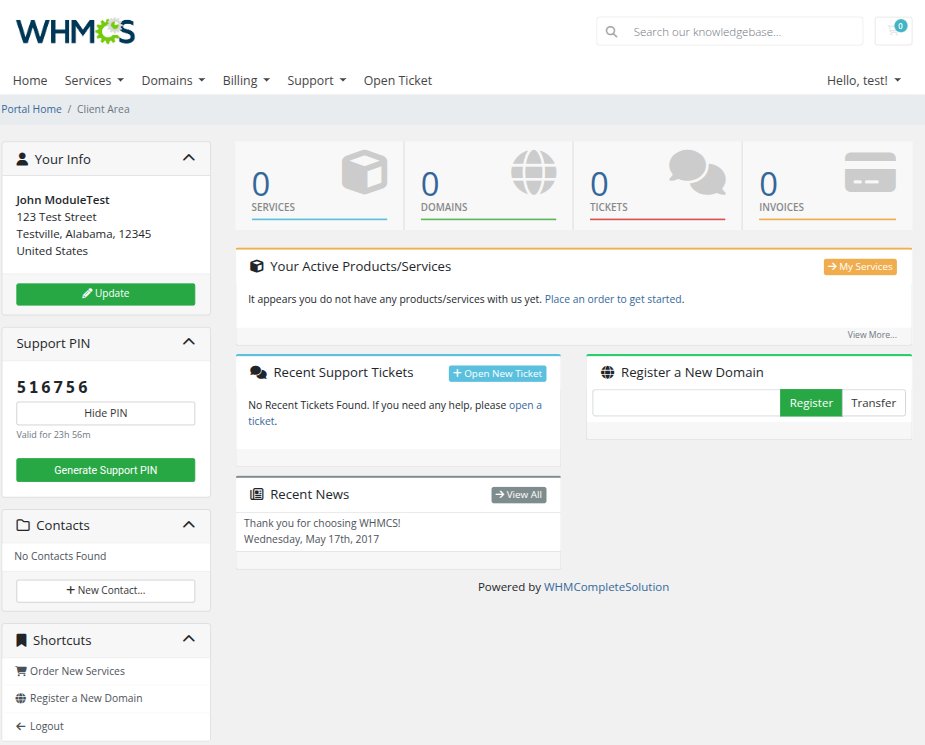
| Back in the sidebar, the panel now shows the PIN itself with a live countdown to expiry, a 'Hide pin' toggle for privacy on a shared screen, and the option to generate a fresh one at any time. |
|
Logs
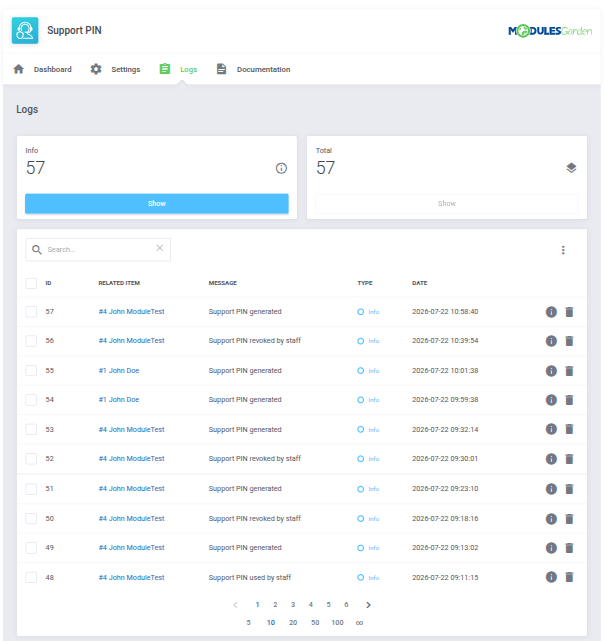
| The "Logs" tool makes monitoring and managing module activity records simple and efficient. It provides options to categorize, filter, and view detailed entries, giving you control over the logs. For detailed guidance on using this tool, check its dedicated article, which is available here. |
|
Tips
| 1. Keep "Hide Full PIN" enabled in production. Staff only ever need to verify a PIN a client reads aloud, not to read it back themselves. |
| 2. Turn on "Require PIN Verification For Client Access" for the strictest workflow. Combined with "Deny Admin Access After PIN Expiration", staff will need to re-verify the client for every new support interaction. |
Update Instructions
| An essential guidance through the process of updating the module is offered here. Ensure successful completion of the module update by carefully following each step, thereby preventing data loss or any unforeseen issues. |
Common Problems
| 1. A client cannot see the "Generate Support PIN" button in the client area. Check 'Settings' → 'Client Area' → 'Enable Generate PIN Button' is turned on, and that 'Hide Support PIN From Navbar' is not hiding the panel entirely. |
| 2. Staff are locked out of a client's data unexpectedly. This happens when 'Require PIN Verification For Client Access' is enabled and the previously verified PIN has expired. Ask the client to read out their current PIN again, or generate a new one, and verify it from the Client Summary panel or the module's Dashboard. |