Support PIN For WHMCS
| (35 intermediate revisions by one user not shown) | |||
| Line 4: | Line 4: | ||
=About [https://www.modulesgarden.com/products/whmcs/support-pin Support PIN For WHMCS]= | =About [https://www.modulesgarden.com/products/whmcs/support-pin Support PIN For WHMCS]= | ||
{| | {| | ||
| − | |style="padding: 10px 0px 10px 0px;"|'''Support PIN For WHMCS''' | + | |style="padding: 10px 0px 10px 0px;"|'''Support PIN For WHMCS''' provides a quick and secure way to verify the identity of clients requesting assistance.<br/> |
| − | + | Clients can easily generate temporary PINs in the client area and share them with the support team whenever verification is required.<br/> | |
| + | Staff can verify the provided PIN directly in WHMCS, helping them protect client accounts while delivering support without unnecessary delays. | ||
|} | |} | ||
| − | *''' | + | *'''Core Features:''' |
{| | {| | ||
| − | |style="padding: 10px 0px 0px 30px;"|✔ Generate | + | |style="padding: 10px 0px 0px 30px;"|✔ Enable Clients To Generate Secure Support PINs For Identity Verification |
|} | |} | ||
{| | {| | ||
| − | |style="padding: 0px 0px 0px 30px;"|✔ | + | |style="padding: 0px 0px 0px 30px;"|✔ Allow Support Staff To Verify Client Identities Before Providing Assistance |
|} | |} | ||
{| | {| | ||
| − | |style="padding: 0px 0px 0px | + | |style="padding: 0px 0px 0px 30px;"|✔ Protect Client Account Data By Requiring Support PIN Verification Before Staff Access |
|} | |} | ||
{| | {| | ||
| − | |style="padding: 0px 0px | + | |style="padding: 0px 0px 10px 30px;"|✔ Integrate Support PIN Verification With WHMCS Dashboard And Client Profiles |
| + | |} | ||
| + | |||
| + | *'''Addon Module:''' | ||
| + | {| | ||
| + | |style="padding: 10px 0px 0px 30px;"|✔ Verify Support PINs And Access Associated Client Accounts | ||
|} | |} | ||
{| | {| | ||
| − | |style="padding: 0px 0px 0px | + | |style="padding: 0px 0px 0px 30px;"|✔ Verify Support PINs Directly From WHMCS Admin Dashboard |
|} | |} | ||
{| | {| | ||
| − | |style="padding: 0px 0px 0px 30px;"|✔ View | + | |style="padding: 0px 0px 0px 30px;"|✔ View And Verify Active Support PINs On Client Summary Pages |
|} | |} | ||
{| | {| | ||
| − | |style="padding: 0px 0px 0px | + | |style="padding: 0px 0px 0px 30px;"|✔ View Dashboard With Support PIN Statistics: |
|} | |} | ||
{| | {| | ||
| − | |style="padding: 0px 0px 0px | + | |style="padding: 0px 0px 0px 45px;"|✔ Active PINs |
|} | |} | ||
{| | {| | ||
| − | |style="padding: 0px 0px 0px 45px;"|✔ | + | |style="padding: 0px 0px 0px 45px;"|✔ Used PINs |
|} | |} | ||
{| | {| | ||
| − | |style="padding: 0px 0px 0px 45px;"|✔ | + | |style="padding: 0px 0px 0px 45px;"|✔ Expired PINs |
|} | |} | ||
{| | {| | ||
| − | |style="padding: 0px 0px 0px | + | |style="padding: 0px 0px 0px 45px;"|✔ Revoked PINs |
|} | |} | ||
{| | {| | ||
| − | |style="padding: 0px 0px 0px | + | |style="padding: 0px 0px 0px 30px;"|✔ View And Manage Generated Support PINs: |
|} | |} | ||
{| | {| | ||
| − | |style="padding: 0px 0px 0px 45px;"|✔ | + | |style="padding: 0px 0px 0px 45px;"|✔ View Assigned Client |
|} | |} | ||
{| | {| | ||
| − | |style="padding: 0px 0px 0px 45px;"|✔ | + | |style="padding: 0px 0px 0px 45px;"|✔ Check PIN Status And Length |
|} | |} | ||
{| | {| | ||
| − | |style="padding: 0px 0px 0px 45px;"|✔ | + | |style="padding: 0px 0px 0px 45px;"|✔ Check Whether PIN Is Single Use |
|} | |} | ||
{| | {| | ||
| − | |style="padding: 0px 0px 0px 45px;"|✔ | + | |style="padding: 0px 0px 0px 45px;"|✔ View Creation, Expiration And Usage Dates |
|} | |} | ||
{| | {| | ||
| − | |style="padding: 0px 0px 0px | + | |style="padding: 0px 0px 0px 45px;"|✔ Revoke Active PINs |
|} | |} | ||
{| | {| | ||
| − | |style="padding: 0px 0px 0px | + | |style="padding: 0px 0px 0px 30px;"|✔ Configure Support PIN Parameters: |
|} | |} | ||
{| | {| | ||
| − | |style="padding: 0px 0px 0px 45px;"|✔ | + | |style="padding: 0px 0px 0px 45px;"|✔ Define PIN Length |
|} | |} | ||
{| | {| | ||
| − | |style="padding: 0px 0px 0px 45px;"|✔ | + | |style="padding: 0px 0px 0px 45px;"|✔ Set PIN Validity Period |
|} | |} | ||
{| | {| | ||
| − | |style="padding: 0px 0px 0px 30px;"|✔ | + | |style="padding: 0px 0px 0px 30px;"|✔ Configure Support PIN Lifecycle: |
|} | |} | ||
{| | {| | ||
| − | |style="padding: 0px 0px 0px 45px;"|✔ | + | |style="padding: 0px 0px 0px 45px;"|✔ Allow Multiple Active PINs Per Client |
|} | |} | ||
{| | {| | ||
| − | |style="padding: 0px 0px 0px 45px;"|✔ | + | |style="padding: 0px 0px 0px 45px;"|✔ Expire PIN After Number Of Uses |
|} | |} | ||
{| | {| | ||
| − | |style="padding: 0px 0px 0px | + | |style="padding: 0px 0px 0px 30px;"|✔ Control Staff Access To Client Accounts: |
|} | |} | ||
{| | {| | ||
| − | |style="padding: 0px 0px 0px | + | |style="padding: 0px 0px 0px 45px;"|✔ Require Support PIN Verification Before Accessing Client Data |
|} | |} | ||
{| | {| | ||
| − | |style="padding: 0px 0px 0px | + | |style="padding: 0px 0px 0px 45px;"|✔ End Staff Access When Verified PIN Expires |
|} | |} | ||
{| | {| | ||
| − | |style="padding: 0px 0px 0px 30px;"|✔ | + | |style="padding: 0px 0px 0px 45px;"|✔ Hide PIN Verification Option From Staff Views |
| + | |||
| + | |} | ||
| + | {| | ||
| + | |style="padding: 0px 0px 0px 30px;"|✔ Configure Support PIN Availability In Client Area: | ||
| + | |||
| + | |} | ||
| + | {| | ||
| + | |style="padding: 0px 0px 0px 45px;"|✔ Enable Support PIN Generation | ||
|} | |} | ||
| Line 122: | Line 136: | ||
|} | |} | ||
| − | *''' | + | *'''Client Area:''' |
{| | {| | ||
| − | |style="padding: 10px 0px 0px 30px;"|✔ PINs | + | |style="padding: 10px 0px 0px 30px;"|✔ Generate Temporary Support PINs |
|} | |} | ||
{| | {| | ||
| − | |style="padding: 0px 0px 0px 30px;"|✔ | + | |style="padding: 0px 0px 0px 30px;"|✔ View Active Support PIN In Sidebar |
|} | |} | ||
{| | {| | ||
| − | |style="padding: 0px 0px | + | |style="padding: 0px 0px 0px 30px;"|✔ Show And Hide Active Support PIN |
| + | |} | ||
| + | {| | ||
| + | |style="padding: 0px 0px 0px 30px;"|✔ Copy Generated Support PIN | ||
| + | |||
| + | |} | ||
| + | {| | ||
| + | |style="padding: 0px 0px 10px 30px;"|✔ View Remaining PIN Validity Period | ||
| + | |||
| + | |} | ||
| + | |||
| + | *'''General Info:''' | ||
| + | {| | ||
| + | |style="padding: 10px 0px 0px 30px;"|✔ Multi-Language Support | ||
| + | |} | ||
| + | {| | ||
| + | |style="padding: 0px 0px 0px 30px;"|✔ Supports PHP 8.3 Back To PHP 8.2 | ||
| + | |} | ||
| + | {| | ||
| + | |style="padding: 0px 0px 0px 30px;"|✔ Supports WHMCS Themes "Twenty-One" And "Nexus" | ||
| + | |} | ||
| + | {| | ||
| + | |style="padding: 0px 0px 0px 30px;"|✔ Supports WHMCS V9.X | ||
| + | |} | ||
| + | {| | ||
| + | |style="padding: 0px 0px 0px 30px;"|✔ Requires ionCube Loader V14 Or Later | ||
| + | |} | ||
| + | {| | ||
| + | |style="padding: 0px 0px 30px 30px;"|✔ Easy [https://www.docs.modulesgarden.com/How_To_Upgrade_WHMCS_Module Module Upgrade] To [https://www.modulesgarden.com/products/whmcs/support-pin#open-source-version Open Source Version] | ||
|} | |} | ||
| Line 141: | Line 183: | ||
We will guide you step by step through the whole installation and configuration process. | We will guide you step by step through the whole installation and configuration process. | ||
|} | |} | ||
| − | |||
{| | {| | ||
| − | |style="padding: 0px 0px | + | |style="padding: 0px 0px 20px 15px;"|'''1. Log in to our client area and download the module.''' |
| − | + | ||
|} | |} | ||
{| | {| | ||
| − | |style="padding: 0px 0px 20px 25px;"| | + | |style="padding: 0px 0px 20px 25px;"|[[File:SP_download.png]] |
|} | |} | ||
| − | |||
{| | {| | ||
| − | |style="padding: 0px 0px 15px 15px;"|'''2. In the next step, you need to permit access to this module.'''<br /> | + | |style="padding: 0px 0px 15px 15px;"|'''2. Extract the package and upload its content into the main WHMCS directory.'''<br /> |
| + | The content of the package to upload should look like this. | ||
| + | |} | ||
| + | {| | ||
| + | |style="padding: 0px 0px 20px 25px;"|[[File:SP_package.png]] | ||
| + | |} | ||
| + | {| | ||
| + | |style="padding: 0px 0px 15px 15px;"|'''3. When you install Support PIN For WHMCS for the first time you have to rename '' 'license_RENAME.php' '' file.'''<br /> | ||
| + | The file is located in '' 'modules/addons/Supportpin/license_RENAME.php'. '' Rename it from '' 'license_RENAME.php' '' to '' 'license.php'. '' | ||
| + | |} | ||
| + | {| | ||
| + | |style="padding: 0px 0px 20px 25px;"|[[File:SP_license.png]] | ||
| + | |} | ||
| + | {| | ||
| + | |style="padding: 0px 0px 15px 15px;"|'''4. In order to configure your license key, you have to edit the previously renamed '' 'license.php' file.'''''<br /> | ||
| + | Enter your license key between quotation marks as presented on the following screen. You can find your license key in our client area → '' 'My Products'. '' | ||
| + | |} | ||
| + | {| | ||
| + | |style="padding: 0px 0px 20px 25px;"|[[File:SP_license2.png]] | ||
| + | |} | ||
| + | {| | ||
| + | |style="padding: 0px 0px 15px 15px;"|'''5. Now you have to activate the module in your WHMCS system. '''<br /> | ||
| + | Log in to your WHMCS admin area. Go to '' 'System Settings' '' → '' 'Addon Modules'. '' Afterwards, find '' 'Support PIN' '' and press the '' 'Activate' '' button. | ||
| + | |} | ||
| + | {| | ||
| + | |style="padding: 0px 0px 20px 25px;"|[[File:SP_2.png]] | ||
| + | |} | ||
| + | {| | ||
| + | |style="padding: 0px 0px 15px 15px;"|'''6. In the next step, you need to permit access to this module.'''<br /> | ||
To do so, click on the '' 'Configure' '' button, tick '' 'Full Administrator' '' and press '' 'Save Changes'. '' | To do so, click on the '' 'Configure' '' button, tick '' 'Full Administrator' '' and press '' 'Save Changes'. '' | ||
|} | |} | ||
{| | {| | ||
| − | |style="padding: 0px 0px 20px 25px;"| | + | |style="padding: 0px 0px 20px 25px;"|[[File:SP_1.png]] |
|} | |} | ||
| − | |||
{| | {| | ||
| − | |style="padding: 0px 0px | + | |style="padding: 0px 0px 30px 15px;"|'''3. You have just successfully installed Support PIN!'''<br /> |
You can access your module under '' 'Addons' '' → '' 'Support PIN'.''<br/> | You can access your module under '' 'Addons' '' → '' 'Support PIN'.''<br/> | ||
'''''Note:''' Expired PINs are swept automatically by the standard WHMCS daily cron task — no additional cron command needs to be configured for this module.'' | '''''Note:''' Expired PINs are swept automatically by the standard WHMCS daily cron task — no additional cron command needs to be configured for this module.'' | ||
| − | |||
| − | |||
| − | |||
|} | |} | ||
| Line 177: | Line 240: | ||
|style="padding: 10px 0px 15px 15px;"|The dashboard gives an at-a-glance read on PIN volume through four counters: | |style="padding: 10px 0px 15px 15px;"|The dashboard gives an at-a-glance read on PIN volume through four counters: | ||
| − | *'''Active''' - PINs currently valid and not yet used. | + | *'''Active''' - PINs currently valid and not yet used up. |
| − | *'''Used''' - PINs that have | + | *'''Used''' - PINs that have reached their configured verification limit. |
*'''Expired''' - PINs past their expiration time. | *'''Expired''' - PINs past their expiration time. | ||
| Line 185: | Line 248: | ||
*'''Revoked''' - PINs manually revoked by staff. | *'''Revoked''' - PINs manually revoked by staff. | ||
| − | Each counter has its own '' ' | + | Each counter has its own '' 'View PINs' '' button, which filters the table below to just that status. |
|} | |} | ||
{| | {| | ||
| − | |style="padding: 0px 0px | + | |style="padding: 0px 0px 20px 25px;"|[[File:SP_4.png]] |
|} | |} | ||
| − | |||
{| | {| | ||
| − | |style="padding: 0px 0px 15px 15px;"|Below the counters sits a standalone '' 'Verify Support PIN' '' field. Enter a PIN a client has given you and press '' 'Verify PIN' '' to confirm it | + | |style="padding: 0px 0px 15px 15px;"|Below the counters sits a standalone '' 'Verify Support PIN' '' field. Enter a PIN a client has given you and press '' 'Verify PIN' '' to confirm it - this does not consume the PIN's use count, it only reports a match or no-match. |
|} | |} | ||
{| | {| | ||
| − | |style="padding: 0px 0px | + | |style="padding: 0px 0px 20px 25px;"|[[File:SP_5.png]] |
|} | |} | ||
| − | |||
{| | {| | ||
|style="padding: 0px 0px 15px 15px;"|Underneath, the full table of issued PINs lists, per PIN: | |style="padding: 0px 0px 15px 15px;"|Underneath, the full table of issued PINs lists, per PIN: | ||
| Line 218: | Line 279: | ||
|} | |} | ||
{| | {| | ||
| − | |style="padding: 0px 0px | + | |style="padding: 0px 0px 20px 25px;"|[[File:SP_6.png]] |
|} | |} | ||
| − | |||
{| | {| | ||
|style="padding: 0px 0px 15px 15px;"|To revoke several PINs at once, tick the checkboxes of the rows you want to remove, open the mass action menu above the table, and choose '' 'Revoke PIN'. '' | |style="padding: 0px 0px 15px 15px;"|To revoke several PINs at once, tick the checkboxes of the rows you want to remove, open the mass action menu above the table, and choose '' 'Revoke PIN'. '' | ||
|} | |} | ||
{| | {| | ||
| − | |style="padding: 0px 0px 30px 25px;"| | + | |style="padding: 0px 0px 30px 25px;"|[[File:SP_7.png]] |
|} | |} | ||
| Line 235: | Line 295: | ||
===PIN Settings=== | ===PIN Settings=== | ||
{| | {| | ||
| − | |style="padding: 10px 0px 15px 15px;"|*'''PIN Length''' - the number of digits generated for each new PIN. | + | |style="padding: 10px 0px 15px 15px;"| |
| − | + | *'''PIN Length''' - the number of digits generated for each new PIN. | |
*'''PIN Expiration Time (Hours)''' - how many hours after generation a PIN remains valid. | *'''PIN Expiration Time (Hours)''' - how many hours after generation a PIN remains valid. | ||
|} | |} | ||
{| | {| | ||
| − | |style="padding: 0px 0px 30px 25px;"| | + | |style="padding: 0px 0px 30px 25px;"|[[File:SP_8.png]] |
|} | |} | ||
===PIN Lifecycle=== | ===PIN Lifecycle=== | ||
{| | {| | ||
| − | |style="padding: 10px 0px 15px 15px;"| | + | |style="padding: 10px 0px 15px 15px;"|The following options control how many PINs may remain active for a client and how many times each PIN may be successfully verified: |
| − | *'''Allow Multiple Active PINs''' - | + | *'''Allow Multiple Active PINs''' - determines whether a client can have several active Support PINs at the same time. |
| + | ** When disabled, generating a new PIN automatically revokes the client's previously active PIN. Only the latest PIN remains active. | ||
| + | ** When enabled, generating a new PIN does not revoke previously active PINs. Several PINs may remain active simultaneously, up to the configured limit. | ||
| − | *'''Expire PIN After | + | *'''Expire PIN After X Uses''' - determines how many successful verifications are allowed for each PIN before its status changes to '' 'Used' ''. |
| + | ** Enter '''1''' to make each PIN single-use. | ||
| + | ** Enter a higher value to allow the same PIN to be successfully verified that many times. | ||
| + | ** Enter '''0''' to allow unlimited verifications until the PIN expires or is revoked. | ||
| + | |||
| + | These settings work independently. '' 'Allow Multiple Active PINs' '' determines whether a client can have only one or multiple active PINs at the same time, up to the '''fixed limit of five'''. <br/>In contrast, '' 'Expire PIN After X Uses' '' determines how many times each PIN can be successfully verified. | ||
|} | |} | ||
{| | {| | ||
| − | |style="padding: 0px 0px 30px 25px;"| | + | |style="padding: 0px 0px 30px 25px;"|[[File:SP_9.png]] |
|} | |} | ||
===Staff Access=== | ===Staff Access=== | ||
{| | {| | ||
| − | |style="padding: 10px 0px 15px 15px;"| | + | |style="padding: 10px 0px 15px 15px;"|The following options determine whether Support PIN verification is required before staff members can access client data and how long the verified access remains valid: |
| − | *''' | + | *'''Require PIN Verification For Client Access''' - when enabled, staff members cannot access a client's profile, services, domains, invoices, quotes, or tickets until they successfully verify that client's Support PIN.<br/> Once verified, access remains valid for the rest of the staff member's current login session. |
| − | *'''Hide Full PIN''' - | + | *'''Deny Admin Access After PIN Expiration''' - when enabled, access granted through PIN verification is revoked as soon as the verified PIN expires.<br/> The staff member must then verify another active PIN to regain access. When disabled, verified access remains valid until the staff member's current login session ends. |
| + | |||
| + | *'''Hide Full PIN''' - when enabled, each PIN is displayed only once, immediately after generation.<br/> After that, the full PIN is masked and cannot be displayed again in either the client area or staff-facing client views, including when an administrator logs in as the client. | ||
|} | |} | ||
{| | {| | ||
| − | |style="padding: 0px 0px 30px 25px;"| | + | |style="padding: 0px 0px 30px 25px;"|[[File:SP_10.png]] |
|} | |} | ||
| − | ===Client Area=== | + | ===Client Area Configuration=== |
{| | {| | ||
| − | |style="padding: 10px 0px 15px 15px;"|*'''Enable Generate PIN Button''' - shows or hides the '' 'Generate Support PIN' '' button in the client area. | + | |style="padding: 10px 0px 15px 15px;"| |
| − | + | *'''Enable Generate PIN Button''' - shows or hides the '' 'Generate Support PIN' '' button in the client area. When disabled, clients cannot generate new PINs themselves. | |
| − | + | ||
| − | + | ||
| − | + | ||
|} | |} | ||
{| | {| | ||
| − | |style="padding: 0px 0px 30px 25px;"| | + | |style="padding: 0px 0px 30px 25px;"|[[File:SP_11.png]] |
|} | |} | ||
==Home Widget== | ==Home Widget== | ||
{| | {| | ||
| − | |style="padding: 10px 0px 15px 15px;"| | + | |style="padding: 10px 0px 15px 15px;"|The compact '' 'Verify Support PIN' '' panel is automatically enabled on the standard WHMCS admin dashboard when the module is activated. No additional configuration is required.<br/> |
| + | Enter a valid Support PIN to open the associated client's profile directly. Unlike verification from the Client Summary page, this action does not count toward the PIN's usage limit.<br/> | ||
| + | If the widget is not needed, it can be disabled in the dashboard widget settings available in the top-right corner of the WHMCS dashboard. Disabling the widget does not affect any other module features. | ||
|} | |} | ||
{| | {| | ||
| − | |style="padding: 0px 0px 30px 25px;"| | + | |style="padding: 0px 0px 30px 25px;"|[[File:SP_12.png]] |
|} | |} | ||
==Client Summary Integration== | ==Client Summary Integration== | ||
{| | {| | ||
| − | |style="padding: 10px 0px 15px 15px;"|On a client's own '' 'Summary' '' tab, a '' 'Support PIN' '' panel shows that client's current PIN status, when it was created, | + | |style="padding: 10px 0px 15px 15px;"|On a client's own '' 'Summary' '' tab, a '' 'Support PIN' '' panel shows that client's current PIN status, when it was created, when it expires, and when (if ever) it was used. |
|} | |} | ||
{| | {| | ||
| − | |style="padding: 0px 0px | + | |style="padding: 0px 0px 20px 25px;"|<div class="image">https://docs.modulesgarden.com/images/modules/supportpin/SP_13.png</div> |
|} | |} | ||
{| | {| | ||
| − | |style="padding: 0px 0px 15px 15px;"| | + | |style="padding: 0px 0px 15px 15px;"|While a PIN is Active, the same panel also shows a '' 'Verify PIN' '' field, so the code the client just gave can be checked right there, without leaving the client's profile.<br/> |
| + | Unlike the Home Widget verify field, a successful verification here does count against the PIN's use limit. | ||
|} | |} | ||
{| | {| | ||
| − | |style="padding: 0px 0px 30px 25px;"|https://docs.modulesgarden.com/images/modules/supportpin/SP_14.png | + | |style="padding: 0px 0px 30px 25px;"|<div class="image">https://docs.modulesgarden.com/images/modules/supportpin/SP_14.png</div> |
|} | |} | ||
==Client Area== | ==Client Area== | ||
{| | {| | ||
| − | |style="padding: 10px 0px 15px 15px;"| | + | |style="padding: 10px 0px 15px 15px;"|The '' 'Support PIN' '' panel is displayed in the client area sidebar on every page. If there are no active PINs, it contains a single '' 'Generate Support PIN' '' button. |
|} | |} | ||
{| | {| | ||
| − | |style="padding: 0px 0px 30px 25px;"|https://docs.modulesgarden.com/images/modules/supportpin/SP_15.png | + | |style="padding: 0px 0px 30px 25px;"|<div class="image">https://docs.modulesgarden.com/images/modules/supportpin/SP_15.png</div> |
|} | |} | ||
{| | {| | ||
| − | |style="padding: 0px 0px 15px 15px;"| | + | |style="padding: 0px 0px 15px 15px;"|A newly generated PIN: |
| + | * is added to the bundle of maximum of 5 active PINs ''(option: "Allow Multiple Active PINs" is '''On''')'', or | ||
| + | * replaces the current PIN ''(option: "Allow Multiple Active PINs" is '''Off''')''. | ||
|} | |} | ||
{| | {| | ||
| − | |style="padding: 0px 0px 30px 25px;"|https://docs.modulesgarden.com/images/modules/supportpin/SP_16.png | + | |style="padding: 0px 0px 30px 25px;"|<div class="image">https://docs.modulesgarden.com/images/modules/supportpin/SP_16.png</div> |
|} | |} | ||
{| | {| | ||
| − | |style="padding: 0px 0px 15px 15px;"|Once confirmed, the | + | |style="padding: 0px 0px 15px 15px;"|Once the action is confirmed, the newly generated PIN and its expiration date are displayed. |
|} | |} | ||
{| | {| | ||
| − | |style="padding: 0px 0px 30px 25px;"|https://docs.modulesgarden.com/images/modules/supportpin/SP_17.png | + | |style="padding: 0px 0px 30px 25px;"|<div class="image">https://docs.modulesgarden.com/images/modules/supportpin/SP_17.png</div> |
|} | |} | ||
{| | {| | ||
| − | |style="padding: 0px 0px 15px 15px;"|Back in the sidebar, the panel now shows the | + | |style="padding: 0px 0px 15px 15px;"|Back in the sidebar, the panel now shows the PINs with a live countdown to expiry, a '' 'Hide PIN' '' toggle for privacy on a shared screen, and the option to generate a fresh one at any time. |
|} | |} | ||
{| | {| | ||
| − | |style="padding: 0px 0px 30px 25px;"|https://docs.modulesgarden.com/images/modules/supportpin/SP_18.png | + | |style="padding: 0px 0px 30px 25px;"|<div class="image">https://docs.modulesgarden.com/images/modules/supportpin/SP_18.png</div> |
|} | |} | ||
| Line 337: | Line 408: | ||
|} | |} | ||
{| | {| | ||
| − | |style="padding: 0px 0px | + | |style="padding: 0px 0px 30px 25px;"|[[File:SP_19.png]] |
|} | |} | ||
=Tips= | =Tips= | ||
{| | {| | ||
| − | |style="padding: 10px 0px 15px 15px;"|1. '''Keep "Hide Full PIN" enabled in production.''' Staff only ever need to verify a PIN a client reads aloud, not to read it back themselves. | + | |style="padding: 10px 0px 15px 15px;"|1. '''Keep "Hide Full PIN" enabled in production.'''<br/> |
| + | Staff only ever need to verify a PIN a client reads aloud, not to read it back themselves - the value is a one-way hash regardless and can never actually be redisplayed. | ||
|} | |} | ||
{| | {| | ||
| − | |style="padding: | + | |style="padding: 0px 0px 15px 15px;"|2. '''Turn on "Require PIN Verification For Client Access" for the strictest workflow.''' <br/> |
| + | Combined with "Deny Admin Access After PIN Expiration", staff will need to re-verify the client for every new support interaction. | ||
| + | |} | ||
| + | {| | ||
| + | |style="padding: 0px 0px 30px 15px;"|3. '''Leave "Expire PIN After X Uses" at its default of 1''' unless you have a specific reason for letting a PIN be checked more than once.<br/> It's what makes each PIN effectively single-use out of the box. | ||
|} | |} | ||
| Line 352: | Line 428: | ||
|style="padding: 10px 0px 30px 15px;"|An essential guidance through the process of updating the module is offered '''[https://www.docs.modulesgarden.com/How_To_Update_WHMCS_Module here]'''.<br/> | |style="padding: 10px 0px 30px 15px;"|An essential guidance through the process of updating the module is offered '''[https://www.docs.modulesgarden.com/How_To_Update_WHMCS_Module here]'''.<br/> | ||
Ensure successful completion of the module update by carefully following each step, thereby preventing data loss or any unforeseen issues. | Ensure successful completion of the module update by carefully following each step, thereby preventing data loss or any unforeseen issues. | ||
| + | |} | ||
| + | =Upgrade Guide= | ||
| + | {| | ||
| + | |style="padding: 10px 0px 30px 15px;"|Seeking a solution that offers greater flexibility, customization tailored to your precise needs, and unrestricted availability?<br/> There is an option that not only proves to be cost-effective in the long run but also includes prioritized support services, making it a truly valuable investment.<br/> | ||
| + | |||
| + | Opt for the [https://www.modulesgarden.com/products/whmcs/support-pin#open-source-version Open Source version] of your Support PIN For WHMCS module to unlock these benefits.<br/> Simply click on either the '''Get Source Code''' or '''Upgrade To Lifetime''' button found on the product's page in our client area to complete the one-step upgrade process, with a '''dedicated discount''' already applied.<br/> | ||
| + | |||
| + | Follow a [https://www.docs.modulesgarden.com/How_To_Upgrade_WHMCS_Module comprehensive guide] covering the transition process, the advantages it brings, and step-by-step instructions on what to do next after the order has been successfully finalized. | ||
|} | |} | ||
| Line 357: | Line 441: | ||
{| | {| | ||
|style="padding: 10px 0px 15px 15px;"|'''1. A client cannot see the "Generate Support PIN" button in the client area.'''<br/> | |style="padding: 10px 0px 15px 15px;"|'''1. A client cannot see the "Generate Support PIN" button in the client area.'''<br/> | ||
| − | Check '' 'Settings' '' → '' 'Client Area' '' → '' 'Enable Generate PIN Button' '' is turned on | + | Check '' 'Settings' '' → '' 'Client Area' '' → '' 'Enable Generate PIN Button' '' is turned on. |
|} | |} | ||
{| | {| | ||
| − | |style="padding: 10px 0px | + | |style="padding: 10px 0px 15px 15px;"|'''2. Staff are locked out of a client's data unexpectedly.'''<br/> |
This happens when '' 'Require PIN Verification For Client Access' '' is enabled and the previously verified PIN has expired. Ask the client to read out their current PIN again, or generate a new one, and verify it from the Client Summary panel or the module's Dashboard. | This happens when '' 'Require PIN Verification For Client Access' '' is enabled and the previously verified PIN has expired. Ask the client to read out their current PIN again, or generate a new one, and verify it from the Client Summary panel or the module's Dashboard. | ||
| + | |} | ||
| + | {| | ||
| + | |style="padding: 10px 0px 30px 15px;"|'''3. A PIN stops working after being checked once, even though it hasn't expired.'''<br/> | ||
| + | This is expected with the default policy: '' 'Expire PIN After X Uses' '' is '''1''' out of the box, so a PIN is spent after its first successful verification. Raise that value (or set it to '''0''' for no limit) in '' 'Settings' '' → '' 'PIN Lifecycle' '' if clients need to be verified more than once per PIN. | ||
|} | |} | ||
Latest revision as of 12:59, 2 September 2026
Contents |
[edit] About Support PIN For WHMCS
| Support PIN For WHMCS provides a quick and secure way to verify the identity of clients requesting assistance. Clients can easily generate temporary PINs in the client area and share them with the support team whenever verification is required. |
- Core Features:
| ✔ Enable Clients To Generate Secure Support PINs For Identity Verification |
| ✔ Allow Support Staff To Verify Client Identities Before Providing Assistance |
| ✔ Protect Client Account Data By Requiring Support PIN Verification Before Staff Access |
| ✔ Integrate Support PIN Verification With WHMCS Dashboard And Client Profiles |
- Addon Module:
| ✔ Verify Support PINs And Access Associated Client Accounts |
| ✔ Verify Support PINs Directly From WHMCS Admin Dashboard |
| ✔ View And Verify Active Support PINs On Client Summary Pages |
| ✔ View Dashboard With Support PIN Statistics: |
| ✔ Active PINs |
| ✔ Used PINs |
| ✔ Expired PINs |
| ✔ Revoked PINs |
| ✔ View And Manage Generated Support PINs: |
| ✔ View Assigned Client |
| ✔ Check PIN Status And Length |
| ✔ Check Whether PIN Is Single Use |
| ✔ View Creation, Expiration And Usage Dates |
| ✔ Revoke Active PINs |
| ✔ Configure Support PIN Parameters: |
| ✔ Define PIN Length |
| ✔ Set PIN Validity Period |
| ✔ Configure Support PIN Lifecycle: |
| ✔ Allow Multiple Active PINs Per Client |
| ✔ Expire PIN After Number Of Uses |
| ✔ Control Staff Access To Client Accounts: |
| ✔ Require Support PIN Verification Before Accessing Client Data |
| ✔ End Staff Access When Verified PIN Expires |
| ✔ Hide PIN Verification Option From Staff Views |
| ✔ Configure Support PIN Availability In Client Area: |
| ✔ Enable Support PIN Generation |
| ✔ View And Manage Module Logs |
- Client Area:
| ✔ Generate Temporary Support PINs |
| ✔ View Active Support PIN In Sidebar |
| ✔ Show And Hide Active Support PIN |
| ✔ Copy Generated Support PIN |
| ✔ View Remaining PIN Validity Period |
- General Info:
| ✔ Multi-Language Support |
| ✔ Supports PHP 8.3 Back To PHP 8.2 |
| ✔ Supports WHMCS Themes "Twenty-One" And "Nexus" |
| ✔ Supports WHMCS V9.X |
| ✔ Requires ionCube Loader V14 Or Later |
| ✔ Easy Module Upgrade To Open Source Version |
[edit] Installation
| This tutorial will show you how to successfully install and configure Support PIN For WHMCS. We will guide you step by step through the whole installation and configuration process. |
| 1. Log in to our client area and download the module. |

|
| 2. Extract the package and upload its content into the main WHMCS directory. The content of the package to upload should look like this. |

|
| 3. When you install Support PIN For WHMCS for the first time you have to rename 'license_RENAME.php' file. The file is located in 'modules/addons/Supportpin/license_RENAME.php'. Rename it from 'license_RENAME.php' to 'license.php'. |

|
| 4. In order to configure your license key, you have to edit the previously renamed 'license.php' file. Enter your license key between quotation marks as presented on the following screen. You can find your license key in our client area → 'My Products'. |

|
| 5. Now you have to activate the module in your WHMCS system. Log in to your WHMCS admin area. Go to 'System Settings' → 'Addon Modules'. Afterwards, find 'Support PIN' and press the 'Activate' button. |

|
| 6. In the next step, you need to permit access to this module. To do so, click on the 'Configure' button, tick 'Full Administrator' and press 'Save Changes'. |

|
| 3. You have just successfully installed Support PIN! You can access your module under 'Addons' → 'Support PIN'. |
[edit] Management
| Support PIN For WHMCS lets clients generate a short-lived verification PIN, and gives your staff several places to check it against a client's claim. In this guide, we will walk you through every section and option of the module in detail. |
[edit] Dashboard
The dashboard gives an at-a-glance read on PIN volume through four counters:
Each counter has its own 'View PINs' button, which filters the table below to just that status. |

|
| Below the counters sits a standalone 'Verify Support PIN' field. Enter a PIN a client has given you and press 'Verify PIN' to confirm it - this does not consume the PIN's use count, it only reports a match or no-match. |

|
Underneath, the full table of issued PINs lists, per PIN:
Use the trash icon on a row to 'Revoke PIN' on that single entry. |

|
| To revoke several PINs at once, tick the checkboxes of the rows you want to remove, open the mass action menu above the table, and choose 'Revoke PIN'. |

|
[edit] Settings
| The 'Settings' tab groups every PIN policy option into four panels. |
[edit] PIN Settings
|

|
[edit] PIN Lifecycle
The following options control how many PINs may remain active for a client and how many times each PIN may be successfully verified:
These settings work independently. 'Allow Multiple Active PINs' determines whether a client can have only one or multiple active PINs at the same time, up to the fixed limit of five. |

|
[edit] Staff Access
The following options determine whether Support PIN verification is required before staff members can access client data and how long the verified access remains valid:
|

|
[edit] Client Area Configuration
|

|
[edit] Home Widget
| The compact 'Verify Support PIN' panel is automatically enabled on the standard WHMCS admin dashboard when the module is activated. No additional configuration is required. Enter a valid Support PIN to open the associated client's profile directly. Unlike verification from the Client Summary page, this action does not count toward the PIN's usage limit. |

|
[edit] Client Summary Integration
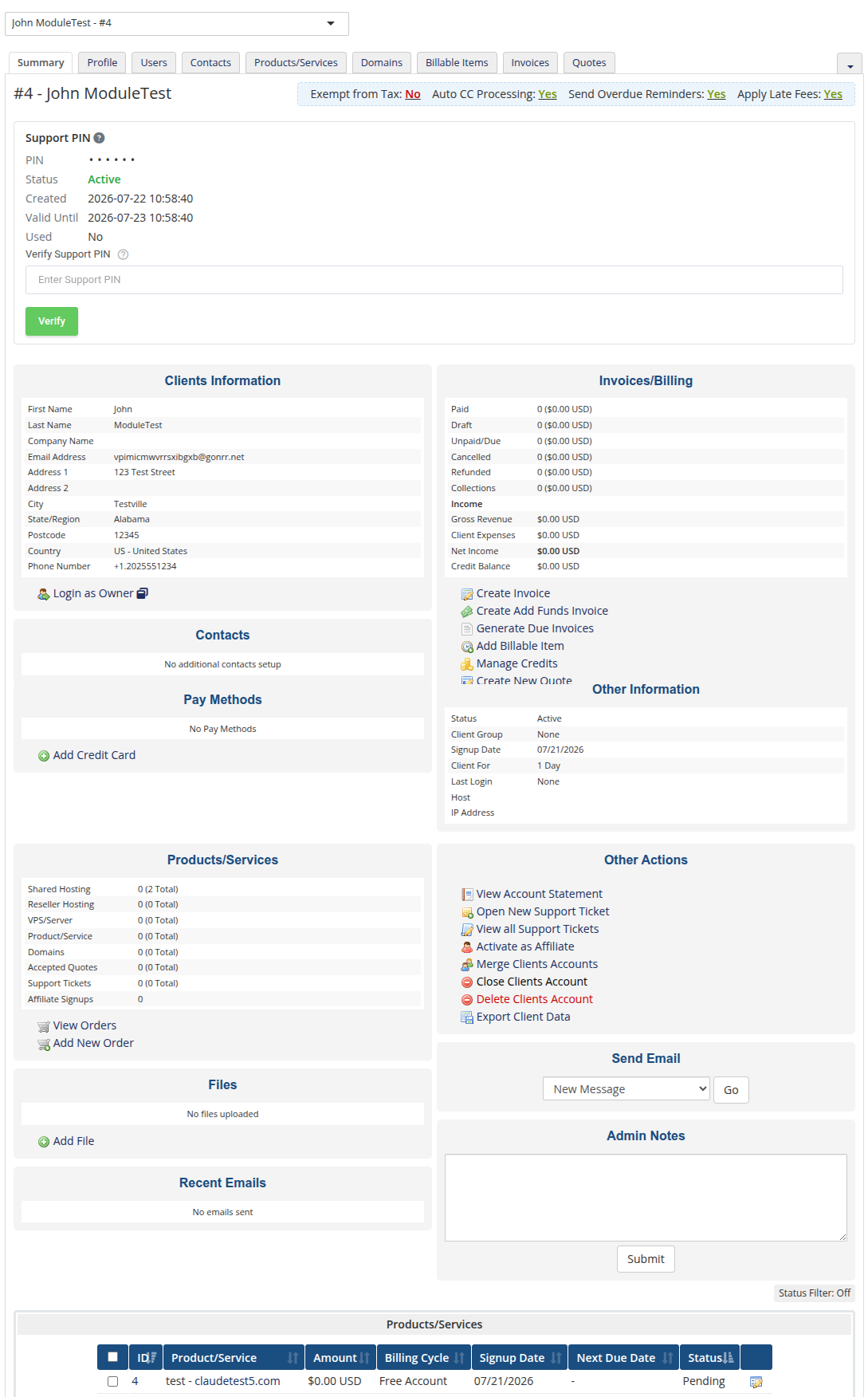
| On a client's own 'Summary' tab, a 'Support PIN' panel shows that client's current PIN status, when it was created, when it expires, and when (if ever) it was used. |
 |
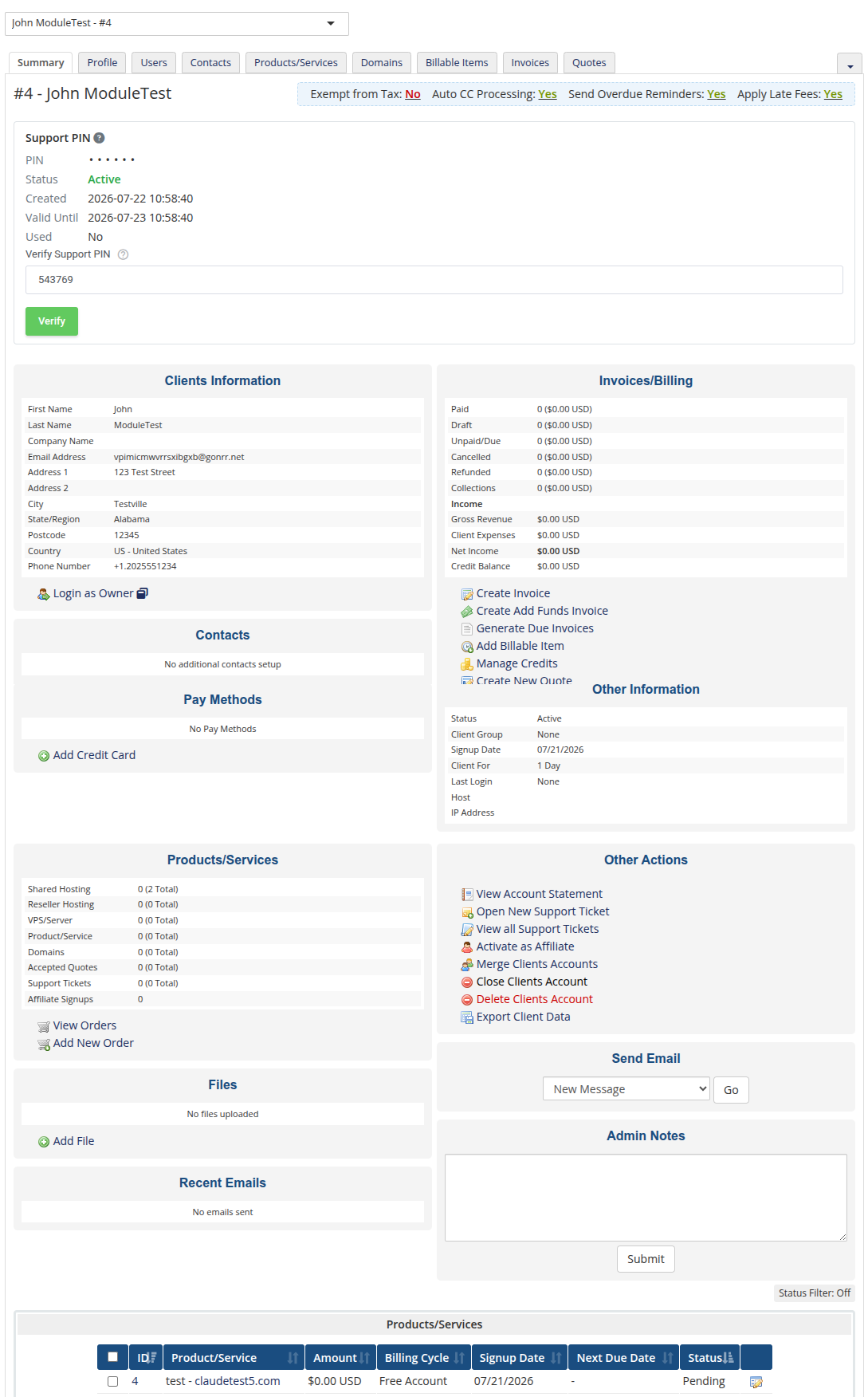
| While a PIN is Active, the same panel also shows a 'Verify PIN' field, so the code the client just gave can be checked right there, without leaving the client's profile. Unlike the Home Widget verify field, a successful verification here does count against the PIN's use limit. |
 |
[edit] Client Area
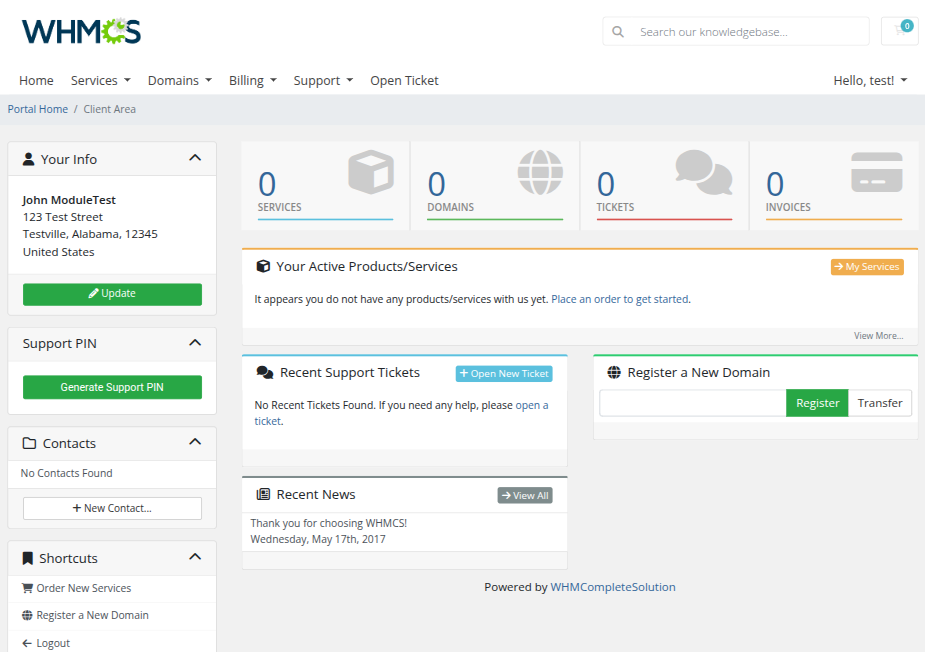
| The 'Support PIN' panel is displayed in the client area sidebar on every page. If there are no active PINs, it contains a single 'Generate Support PIN' button. |
 |
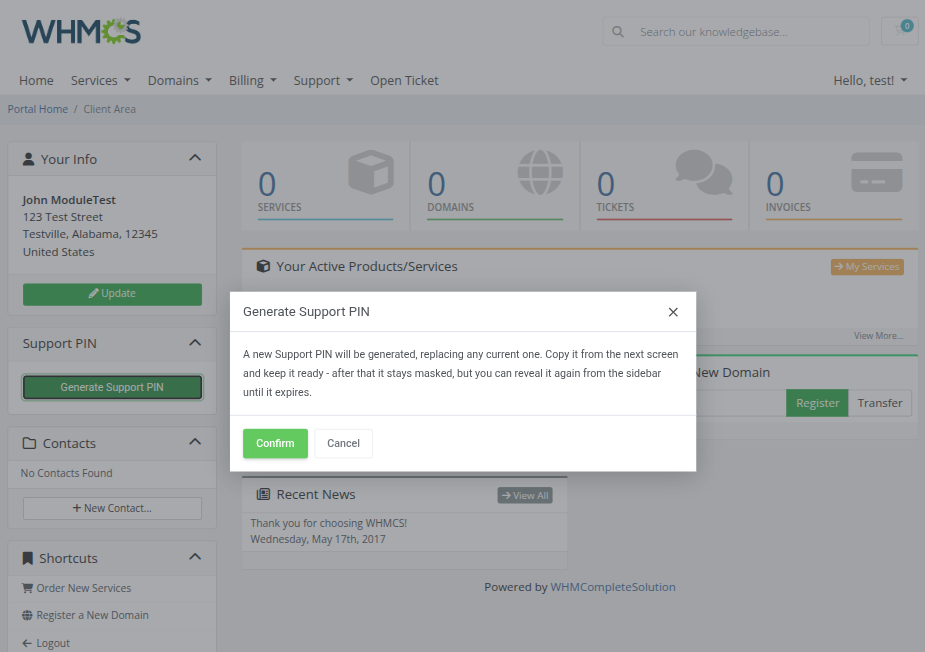
A newly generated PIN:
|
 |
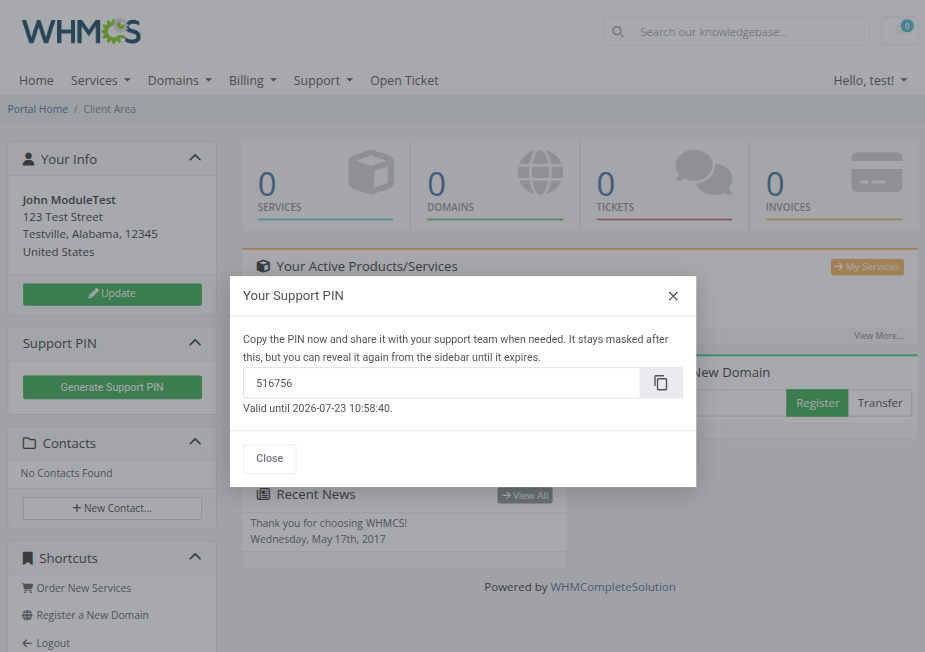
| Once the action is confirmed, the newly generated PIN and its expiration date are displayed. |
 |
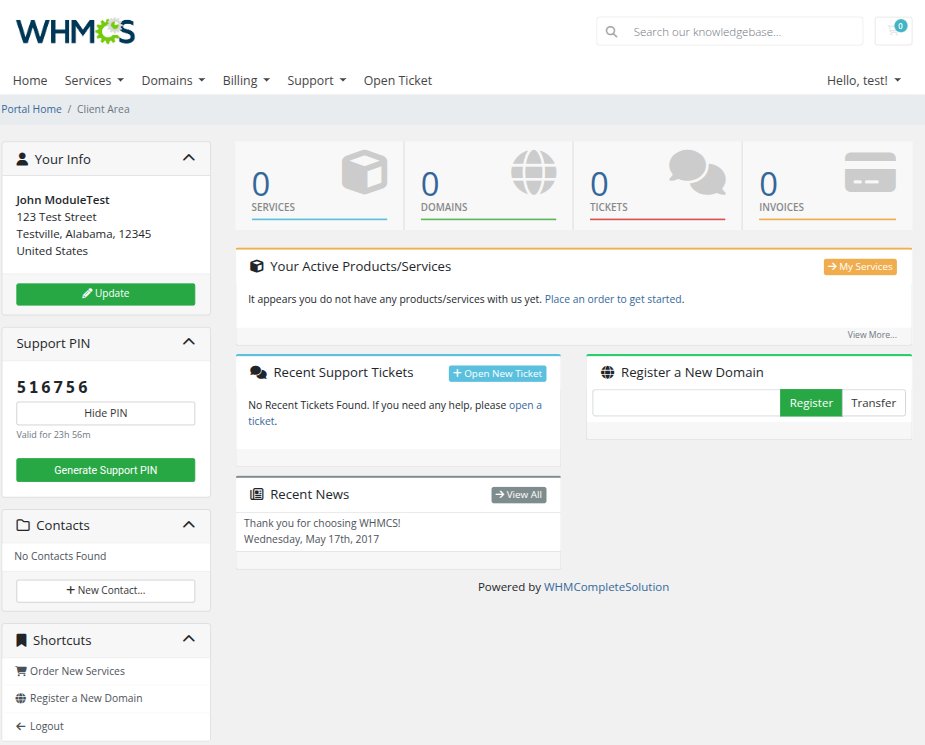
| Back in the sidebar, the panel now shows the PINs with a live countdown to expiry, a 'Hide PIN' toggle for privacy on a shared screen, and the option to generate a fresh one at any time. |
 |
[edit] Logs
| The "Logs" tool makes monitoring and managing module activity records simple and efficient. It provides options to categorize, filter, and view detailed entries, giving you control over the logs. For detailed guidance on using this tool, check its dedicated article, which is available here. |

|
[edit] Tips
| 1. Keep "Hide Full PIN" enabled in production. Staff only ever need to verify a PIN a client reads aloud, not to read it back themselves - the value is a one-way hash regardless and can never actually be redisplayed. |
| 2. Turn on "Require PIN Verification For Client Access" for the strictest workflow. Combined with "Deny Admin Access After PIN Expiration", staff will need to re-verify the client for every new support interaction. |
| 3. Leave "Expire PIN After X Uses" at its default of 1 unless you have a specific reason for letting a PIN be checked more than once. It's what makes each PIN effectively single-use out of the box. |
[edit] Update Instructions
| An essential guidance through the process of updating the module is offered here. Ensure successful completion of the module update by carefully following each step, thereby preventing data loss or any unforeseen issues. |
[edit] Upgrade Guide
| Seeking a solution that offers greater flexibility, customization tailored to your precise needs, and unrestricted availability? There is an option that not only proves to be cost-effective in the long run but also includes prioritized support services, making it a truly valuable investment. Opt for the Open Source version of your Support PIN For WHMCS module to unlock these benefits. Follow a comprehensive guide covering the transition process, the advantages it brings, and step-by-step instructions on what to do next after the order has been successfully finalized. |
[edit] Common Problems
| 1. A client cannot see the "Generate Support PIN" button in the client area. Check 'Settings' → 'Client Area' → 'Enable Generate PIN Button' is turned on. |
| 2. Staff are locked out of a client's data unexpectedly. This happens when 'Require PIN Verification For Client Access' is enabled and the previously verified PIN has expired. Ask the client to read out their current PIN again, or generate a new one, and verify it from the Client Summary panel or the module's Dashboard. |
| 3. A PIN stops working after being checked once, even though it hasn't expired. This is expected with the default policy: 'Expire PIN After X Uses' is 1 out of the box, so a PIN is spent after its first successful verification. Raise that value (or set it to 0 for no limit) in 'Settings' → 'PIN Lifecycle' if clients need to be verified more than once per PIN. |